Introduction
In today’s hybrid work environment, maintaining consistent device configurations is more critical than ever. With users working across various networks and locations, ensuring that endpoint settings remain compliant with organisational policies can be a challenge. That’s where Microsoft Intune’s Config Refresh comes in a powerful feature designed to automatically reapply configuration settings on Windows devices at regular intervals. This guide walks you through what Config Refresh is, why it matters, and how to implement it effectively.
What is Config Refresh?
Intune Config Refresh is a feature within Microsoft Intune that allows administrators to set a regular interval ranging from 30 to 1,440 minutes for reapplying previously deployed policy settings on Windows 11 devices. This proactive mechanism ensures that devices remain compliant with organisational standards, even if users or external processes alter configurations.
Unlike traditional policy enforcement that relies on periodic check-ins with the Intune service, Config Refresh operates offline. This means that even when a device is disconnected from the internet or the Intune service, it can still reapply its last known good configuration locally. This is particularly useful in scenarios where users may attempt to bypass security settings or when devices are used in environments with limited connectivity.
Administrators also have the flexibility to pause Config Refresh for a specified duration — ideal for troubleshooting or temporary policy exceptions. Once the pause period expires, the refresh process resumes automatically, reinstating the intended settings.
Prerequisites
Before implementing Config Refresh, ensure the following:
- Devices must be running Windows 11, version 23H2, or version 22H2 with the June 2024 security update installed (or later).
- A Microsoft Intune Plan 1 license is required. This plan is included in subscriptions such as Microsoft 365 E3, E5, F1, F3, Enterprise Mobility + Security E3 and E5, and Business Premium plans.
Configuring The Config Refresh Policy
- Navigate to the Microsoft Intune admin center.
- Create a Configuration Profile
- Go to Devices > Configuration profiles > Create profile.
- Select Windows 10 and later as the platform and Settings catalog as the profile type.
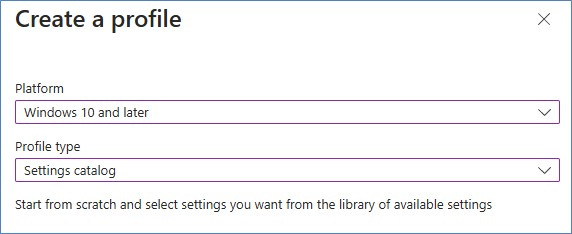
- Search for ‘Config Refresh’ in the settings catalog.

- Enable Config Refresh and set the desired Refresh cadence (default is 90 minutes; allowed values range from 30 to 1,440 minutes).

- Deploy the profile to the appropriate device groups.
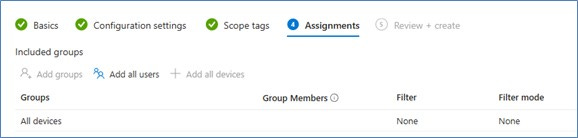
Verifying Config Refresh on Devices
- After deployment navigate to the below reg key to confirm the settings.
HKEY_LOCAL_MACHINE\SOFTWARE\Microsoft\Enrollments\<Enrollment-ID>\ConfigRefresh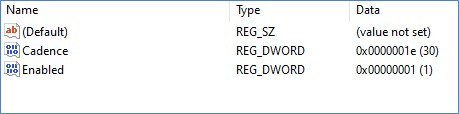
- Check Task Scheduler > Microsoft > Windows > EnterpriseMgmtNonCritical for a task named ConfigRefreshTask, reflecting the configured refresh interval.
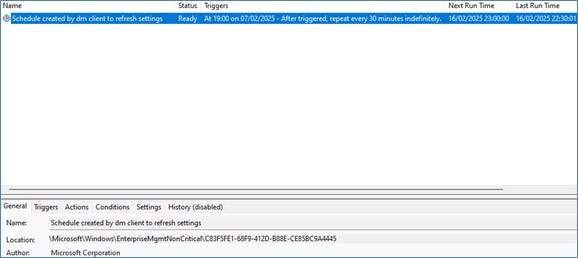
Pausing Config Refresh (For troubleshooting or maintenance)
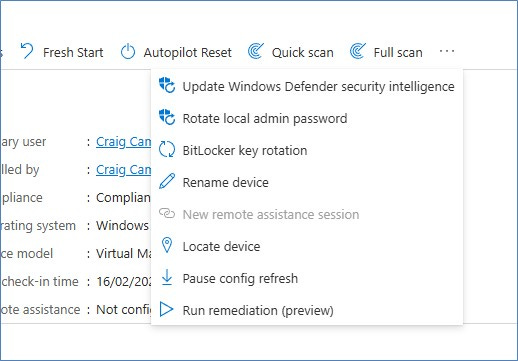
- In the Intune admin center, select the target device choose ‘Pause Config Refresh’
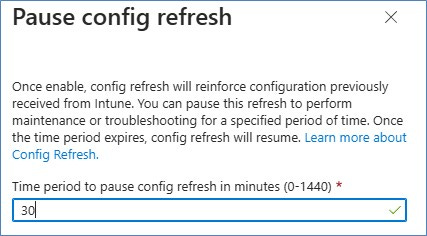
- specify the duration (0 to 1,440 minutes).
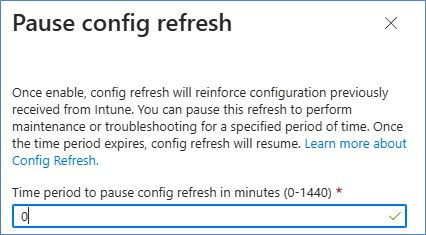
- To manually resume, set the pause duration to 0 minutes.
Considerations
While Config Refresh is a powerful tool for maintaining policy compliance, there are a few important considerations to keep in mind:
Policy Conflicts
Be cautious when using Config Refresh alongside other policy enforcement mechanisms such as Group Policy or third-party MDM solutions. Overlapping configurations can lead to policy conflicts or unexpected behaviour. In environments where both Intune and Group Policy are used, it’s important to understand which tool has precedence. By default, Group Policy overrides MDM settings, unless the MDMWinsOverGP setting is enabled (available from Windows 10 version 1803 onwards), which allows Intune to take priority for supported settings.
Scope of Enforcement:
Config Refresh specifically reinforces settings managed by the Policy Configuration Service Provider (CSP). It does not reapply configurations outside this scope — such as Firewall, AppLocker, or other security policies managed through different CSPs or via Group Policy. As such, it’s essential to understand which settings are covered by the Policy CSP to ensure your compliance strategy is effective.
Licensing Compliance
To use Config Refresh, all targeted users and devices must be licensed with Microsoft Intune Plan 1. This plan is included in several Microsoft subscriptions, including:
- Microsoft 365 E5
- Microsoft 365 E3
- Microsoft 365 F1 and F3
- Enterprise Mobility + Security (EMS) E3 and E5
- Microsoft 365 Business Premium
- Microsoft 365 Government G3 and G5
- Microsoft Intune for Education (A3 and A5)
You can find the full breakdown and comparison of plans in the https://www.microsoft.com/en-us/microsoft-365/compare-microsoft-365-enterprise-plans
Final Thoughts
As organisations continue to embrace hybrid and remote work models, maintaining consistent and secure device configurations has become a top priority. Microsoft Intune’s Config Refresh offers a reliable and proactive solution to this challenge by ensuring that critical policy settings are automatically reapplied — even when devices are offline or disconnected from the Intune service.
By leveraging Config Refresh, IT administrators can reduce the risk of configuration drift, enhance compliance with organisational policies, and minimise the need for manual intervention. When implemented thoughtfully — with attention to licensing, policy scope, and potential conflicts — Config Refresh becomes a valuable addition to any modern endpoint management strategy.
Whether you’re managing a small fleet or thousands of devices, Config Refresh helps reinforce your security posture and ensures that your Windows 11 environment remains aligned with your organisation’s standards.
Want More Intune & Entra ID How-Tos?
Looking to sharpen your skills in Microsoft Intune and Entra ID? Head over to my YouTube channel https://www.youtube.com/@thedeploymentguy for practical video tutorials, expert walkthroughs, and the latest updates in device management. Whether you’re just getting started or looking to master advanced features, there’s something for everyone.