Intune’s built-in configuration policies cover a lot of ground, but they don’t cover everything. When you need to tweak a registry key, map a drive, fix a setting that has no OMA-URI, or run a one-off task across your fleet, platform scripts are the answer. This guide walks through how they work, what to watch out for, and four examples you can take and use straight away.
Platform scripts vs remediations – which one do you need?
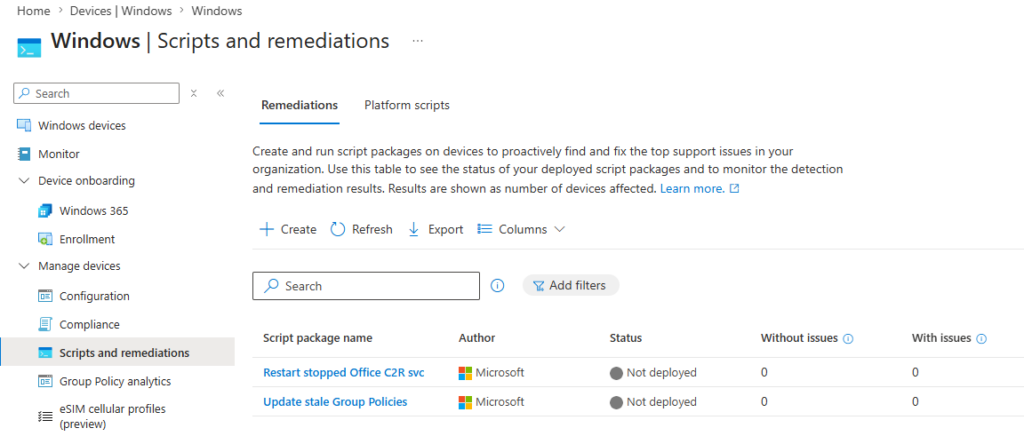
Intune gives you two ways to run PowerShell on managed Windows devices. Platform scripts and remediations. They’re related but serve different purposes, and picking the wrong one wastes time.
Platform scripts are for one-off or initial configuration tasks. Deploy a script to a group, it runs once, job done. If you need it to run again, you update the script content and Intune re-runs it on the next check-in. Use these for things like applying a registry change at enrolment, mapping drives on first login, or running a setup task you only need once per device.
Remediations are for ongoing detection and correction. You write two scripts one that detects a problem, one that fixes it and Intune runs the detection on a schedule. If the detection script reports a problem, the remediation script fires. Use these when you need to keep a setting in a specific state over time, not just set it once.The examples in this post all use platform scripts. If you find yourself writing a script that needs to run on a schedule to keep something from drifting, that’s a remediation.
How platform scripts run
Platform scripts run via the Intune Management Extension (IME), a lightweight agent that installs automatically on any Windows device that gets a platform script policy assigned to it. You don’t need to deploy the IME separately it appears once the device checks in and picks up the assignment.
The IME logs everything it does to a single log file on the device
C:\ProgramData\Microsoft\IntuneManagementExtension\Logs\IntuneManagementExtension.logThis is the first place to look when a script doesn’t run or exits with an unexpected result. Search for your script name in the log and you’ll find the execution timestamp, context it ran in, and any errors. Scripts run once by default. If you need to force a re-run, update the script content (even a comment change works) and Intune will treat it as a new script and run it again on the next check-in cycle. Devices check in roughly every 8 hours, or you can trigger a sync manually from the device or from the admin center.
Viewing the log file
Opening the log in Notepad works in a pinch, but the IME log is verbose and constantly being written to so plain text editors make it painful to follow. The best tool for the job depends on whether you have access to a ConfigMgr environment.
If you have access to a ConfigMgr server
You have two strong options, and both understand the .log format that the IME log uses natively.
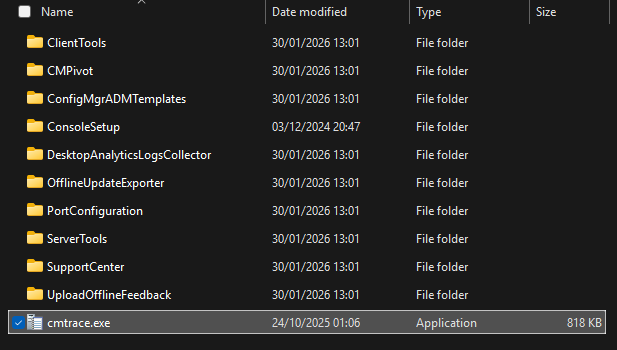
CMTrace is the go-to choice for most admins. It colour-codes entries by severity, auto-scrolls as new entries are written, and lets you search inline. Crucially, CMTrace.exe is a portable executable it doesn’t need to be installed and has no dependencies. Grab it from a ConfigMgr server at C:\Program Files (x86)\Microsoft Configuration Manager\Tools\CMTrace.exe, drop it somewhere accessible, and it’ll run on any Windows machine.
OneTrace is the modern alternative and supports tabbed log viewing, which is useful when you want to cross-reference the IME log alongside other logs in the same session. It isn’t installed automatically with ConfigMgr it comes as part of Support Center, which has its own installer. Find it on your ConfigMgr site server at:
C:\Program Files\Microsoft Configuration Manager\tools\SupportCenter\SupportCenterInstaller.msiCopy that MSI to your machine and run it to install Support Center and OneTrace together. Once installed, OneTrace will be available in the Start menu under the Microsoft Configuration Manager folder or in the below location
C:\Program Files (x86)\Configuration Manager Support Center\CMOneTrace.exe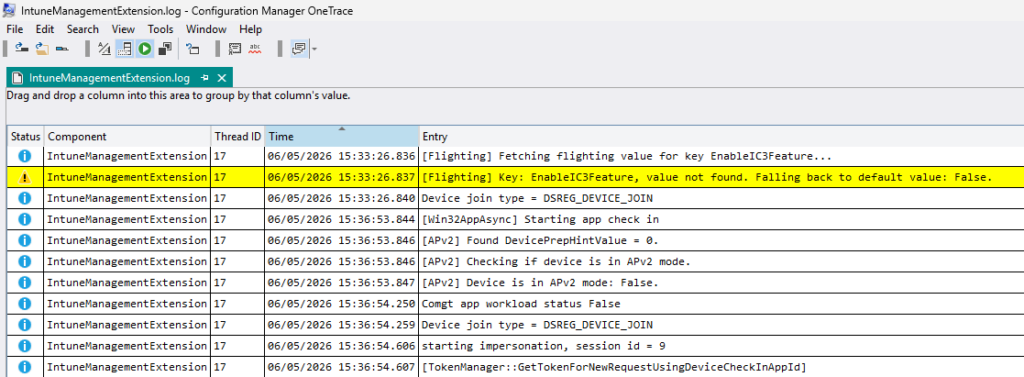
If you don’t have access to a ConfigMgr server
The IME log format isn’t well served by general-purpose log viewers, so your options are more limited but these are the most practical:
Notepad++ is a significant step up from plain Notepad. It handles large files without freezing, has line numbers, and supports regex search, which helps when you’re hunting for a specific script name or error. It won’t parse the log format or colour-code by severity, but for basic reading it’s far more usable. Free to download with no installation dependencies.
Visual Studio Code with the Log File Highlighter extension adds some colour coding, though it doesn’t parse the ConfigMgr log format the way CMTrace does you won’t get the clean per-entry breakdown. It’s worth having if VS Code is already your editor of choice, but don’t expect it to transform the readability of this particular log.
How to add a platform script
In the Intune admin center:
- Devices > Scripts and remediations > Platform scripts > + Add > Windows 10 and later.
- Give it a name and optionally a description. The name shows up in the IME log, so make it descriptive – something like “Disable Fast Startup” rather than “Script1”.
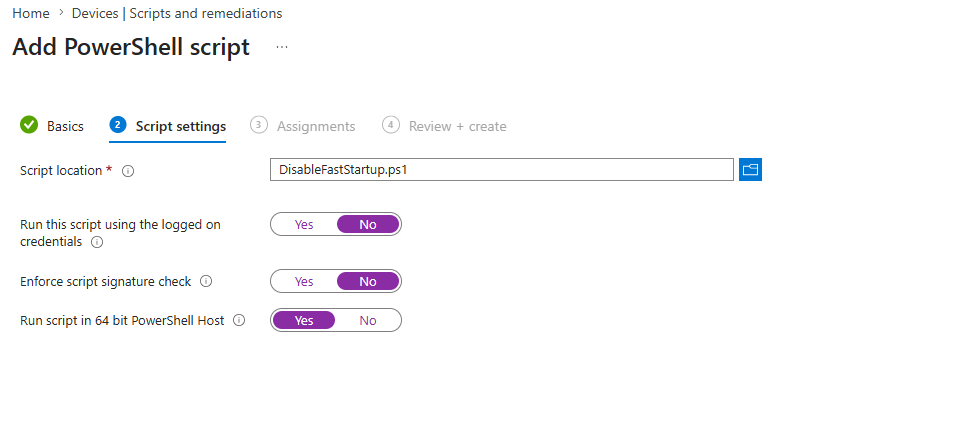
- Under Script settings, browse to your .ps1 file.
- Configure the execution settings (see below).
- Assign to a device or user group on the Assignments tab.
- Review and select Add.
Script settings – what each option does
There are three settings that affect how your script runs. Getting these wrong is the most common reason scripts produce unexpected results.
Run this script using the logged on credentials
Yes – the script runs as the currently logged-on user. Use this for anything that needs user-level access such as mapping network drives, applying user-side registry keys (HKCU), or writing files to a user profile.
No (default) – the script runs as SYSTEM. Use this for anything requiring elevation: modifying HKLM registry keys, changing system-level settings, or tasks that need to run whether or not a user is logged in.
Most configuration scripts should run as SYSTEM. Map network drives being the obvious exception as these drives are user-scoped.
Enforce script signature check
Leave this set to No unless your organisation has a code-signing infrastructure in place. With it set to Yes, the script must be signed by a trusted publisher or it will fail silently.
Run script in 64-bit PowerShell host
Set this to Yes. The default is 32-bit, which can cause scripts to read the wrong registry hive or fail to find paths that only exist in a 64-bit context. Unless you specifically need a 32-bit environment, always run in 64-bit.
Four real-world examples
These are all tasks that come up regularly in SMB and education environments things that either can’t be done with a built-in Intune policy or are faster to handle with a short script than with a full configuration profile.
Example 1- Disable Fast Startup
Fast Startup is enabled by default on Windows. It causes devices to not fully shut down and they hibernate the kernel instead which means Windows Update changes don’t always apply cleanly on the next boot. It’s also the reason you sometimes see “your device needs to restart to apply updates” messages that never resolve.
This script disables it by setting the HiberbootEnabled registry value to 0. Run as SYSTEM (no logged-on user required).
# Disable Fast Startup
$registryPath = "HKLM:\SYSTEM\CurrentControlSet\Control\Session Manager\Power"
$registryName = "HiberbootEnabled"
$registryValue = 0

Set-ItemProperty -Path $registryPath -Name $registryName -Value $registryValue -Type DWord

Write-Output "Fast Startup has been disabled."
Settings: Run as logged on credentials: No | 64-bit: Yes
Example 2 – enable automatic time zone detection
Devices that join Entra ID or get enrolled during Autopilot sometimes end up with the wrong time zone set, because there’s no user in the OOBE to confirm it. This script enables the Windows location service for time zone purposes and starts the tzautoupdate service, which handles automatic time zone detection going forward.
# Enable automatic time zone detection

# Enable tzautoupdate service (set to automatic start)
Set-ItemProperty -Path "HKLM:\SYSTEM\CurrentControlSet\Services\tzautoupdate" `
    -Name "Start" -Value 3 -Type DWord -Force

# Start the service if not already running
try {
    Start-Service -Name "tzautoupdate" -ErrorAction Stop
    Write-Output "tzautoupdate service started."
} catch {
    Write-Output "Could not start tzautoupdate: $_"
}
Settings: Run as logged on credentials: No | 64-bit: Yes
Example 3 – Map a network drive
One of the most common GPO migration tasks. Group Policy Preferences drive maps don’t work on Entra ID-joined devices, so this is the script replacement for hybrid and cloud-only environments. The script checks whether the drive is already mapped before attempting to create it, so it’s safe to run more than once.
Important: this must run in user context (Run as logged on credentials: Yes), because drive mappings are user-scoped. Running as SYSTEM will appear to succeed but the drive won’t appear for the user.
# Map a network drive
$driveLetter = "S"
$networkPath = "\\server\share"    # Update to your UNC path

if (-not (Get-PSDrive -Name $driveLetter -ErrorAction SilentlyContinue)) {
    try {
        New-PSDrive -Name $driveLetter -PSProvider FileSystem `
            -Root $networkPath -Persist -Scope Global
        Write-Output "Drive $driveLetter`: mapped to $networkPath"
    } catch {
        Write-Output "Failed to map drive: $_"
    }
} else {
    Write-Output "Drive $driveLetter`: already mapped."
}
Settings: Run as logged on credentials: Yes | 64-bit: Yes
If you need to map multiple drives, extend the script with a hashtable of drive letter / UNC path pairs and loop through them. One script handles the lot.
Example 4 – Disable Windows consumer features
Windows 11 ships with a setting that lets Microsoft push suggested apps and sponsored tiles into the Start menu. It’s on by default on Pro, and some editions leave it active even in Enterprise builds. This script sets the DisableWindowsConsumerFeatures policy registry key to block it.
# Disable Windows consumer features (suggested apps, sponsored Start tiles)
$regPath = "HKLM:\SOFTWARE\Policies\Microsoft\Windows\CloudContent"

if (-not (Test-Path $regPath)) {
    New-Item -Path $regPath -Force | Out-Null
}

Set-ItemProperty -Path $regPath -Name "DisableWindowsConsumerFeatures" `
    -Value 1 -Type DWord -Force

Write-Output "Windows consumer features disabled."
Settings: Run as logged on credentials: No | 64-bit: Yes
When scripts don’t run
The most common reasons a platform script doesn’t run, and where to look:
- IME not installed. If no Intune Management Extension is present on the device, scripts won’t run. Open Apps & features on the device and confirm Microsoft Intune Management Extension is listed. If it’s missing, check that the device is Entra ID-joined and the policy assignment is pointing to a valid group containing that device.
- Wrong execution context. A script that modifies HKCU while running as SYSTEM will fail silently. A drive mapping script running as SYSTEM will appear to succeed but the drive won’t show for users. Double-check the Run as logged on credentials setting matches what your script actually needs.
- Script ran once and won’t re-run. Platform scripts run once per device by default. To force a re-run, modify the script content and save. Intune detects the change and re-queues it.
- Check the IME Log Open C:\ProgramData\Microsoft\IntuneManagementExtension\Logs\IntuneManagementExtension.log and search for your script name. The log shows when the script ran, which context it used, the exit code, and any output written with Write-Output.
Limitations worth knowing
Platform scripts are straightforward but not without constraints
- Windows only. Platform scripts work on Windows 10 and later. macOS and Linux have their own script deployment options under the same menu.
- 200KB maximum file size. If your script is larger than 200KB, split it up or host the main logic externally and use the platform script to call it.
- No output visible in the admin center. You can see whether a script succeeded or failed, but you can’t see Write-Output or any other output in the Intune UI. Everything goes to the IME log on the device. For scripts where you need output centralised, write results to a log file or event log that you can pull with another mechanism.
- Runs once per device, not per user. If you assign a platform script to a user group, it still runs once on the device when any user in that group logs in. It doesn’t re-run for each user on a shared device. For per-user configuration, run the script in user context and consider whether a remediation (with a scheduled run) is more appropriate.
https://learn.microsoft.com/en-us/intune/device-management/tools/run-powershell-scripts-windows