What is the new Device action status view?
Intune Device Action Status gives administrators a clearer way to monitor supported remote actions for an individual device. Instead of sending an action and wondering what happened next, you can review whether Intune reports it as requested, in progress or completed.
In this guide, I’ll show you where to find Intune Device Action Status, explain what each status means and cover the checks to perform when an action does not produce the expected result.
Microsoft introduced the redesigned single-device page in the Intune 2604 service release and continues to describe it as a preview. The new page brings device information, monitoring tools, editable properties, physical details and remote actions into a more consistent full-page layout.
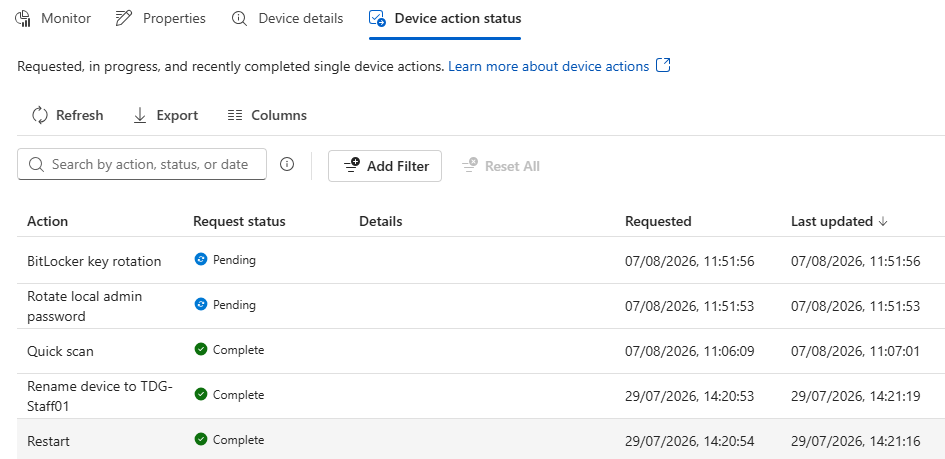
The Device action status tab is the per-device view of supported action activity. Microsoft says it shows actions that have been requested, are in progress or have recently completed. You can search, sort and filter the list, which is considerably more useful than relying on memory after three administrators have all tried to help at once.
Microsoft’s current release notes explicitly mention Reset passcode, Recover passcode, Remote Lock and Rotate BitLocker Keys in connection with the table, because temporary passcodes or PINs from those actions can be viewed there. Microsoft does not publish a complete action-by-action support matrix for this tab, so the sensible wording is supported actions, not every remote action Intune has ever heard of.
The actions available on a device still depend on its platform, enrolment type, capabilities, current state and the permissions assigned to the administrator. A supervised iPad, a Windows laptop and an Android dedicated device will not present identical options. A consistent interface is helpful, but it cannot make different operating systems suddenly agree on everything.
Before you begin
You need access to the Microsoft Intune admin centre, permission to read the selected managed device and any Remote tasks permission required for an action you intend to run. The redesigned page must also be enabled through the Preview new device view toggle.
Enable the redesigned device page
- Sign in to the Microsoft Intune admin centre.
- Go to Devices > All devices.
- Move the Preview new device view toggle to On.

The preview currently applies when you open the endpoint from the All devices list. If you reach the same device through another part of Intune, such as a report, the original device page can still appear even though the toggle is enabled. This can briefly make the feature look unreliable when it is actually being very particular about how you arrived.
Select a suitable device from the list. The redesigned page includes an Essentials section containing key device information, together with navigation for monitoring, tools and reports, properties, device details and action status.

Review device action status
Open Intune Device Action Status and review the entries already recorded for the selected device. Use the search, sort and filter controls to find the relevant action, particularly when several requests were made close together. The table is most valuable when it answers a narrow question such as whether Intune logged a particular AV scan, key-rotation request or a restart.
What the status does and does not tell you
Microsoft describes the tab in terms of requested, in-progress and recently completed actions. These are useful lifecycle indicators rather than a universal guarantee about the final business outcome.
|
Stage |
What it tells you |
What it does not prove |
|---|---|---|
|
Requested |
Intune has recorded the action request. |
The endpoint has already received or completed it. |
|
In progress |
Intune currently reports that processing is under way. |
Every dependent workload is healthy or nearly finished. |
|
Completed |
Intune reports the supported action as completed. |
The original support problem is solved or every downstream result has updated. |
Exact labels and behaviour can vary by action, platform and preview revision. Treat the displayed state as evidence about that action record, then validate the intended result in the most relevant place. For Remote Lock, that means confirming the supported device actually locked; for key rotation, it means following the documented recovery-key workflow rather than admiring a green status and declaring victory.
Microsoft’s Device actions report documentation provides an especially useful warning with the Delete action. A completed Delete entry confirms that Intune’s server-side process has finished, but it does not
prove that the client-side command has completed. That command also varies by platform and enrolment type: Windows and Apple devices receive Retire, while Android can receive Retire or Wipe.
In other words, Intune may have completed its part while the endpoint is still considering its contribution. Anyone who has participated in a group project will recognise the arrangement
Per-device status and tenant-wide history
Intune provides two useful perspectives for action history: the table inside the selected device and the tenant-wide Device actions report. They overlap just enough to appear interchangeable, which naturally means they are not.
|
View |
Best use |
What to remember |
|---|---|---|
|
Device action |
Reviewing supported action activity for the device currently open. |
Per-device, preview experience; Microsoft does not publish a complete supported-action matrix. |
|
Device actions |
Auditing requested actions across managed devices. |
Tenant-wide history for the previous 180 days, including initiator and date/time details. |
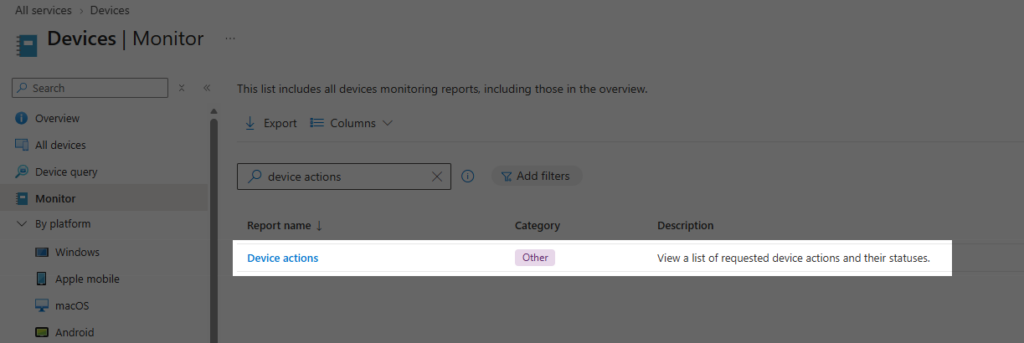
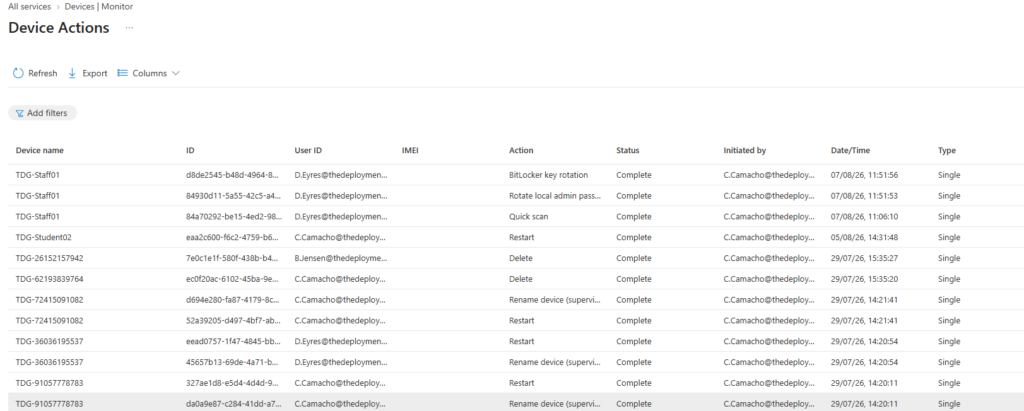
The tenant-wide Device actions report is available under Devices > Monitor > Device actions. It is the better choice when you need historical activity across several endpoints.
The report is particularly effective when somebody is certain they did not restart, lock or otherwise interfere with a device. It does not join the discussion or raise its voice; it simply presents a name and a timestamp, which is usually enough.
Troubleshooting Device action status
The redesigned page is not appearing
Check that you opened the endpoint through Devices > All devices and enabled Preview new device view. Opening a device from a report or another portal route can still display the original experience.
The page remains in preview at the time of writing, so Microsoft can change its labels, layout or navigation. Buttons moving around the admin centre are less a technical fault than a natural seasonal event, although they still have a remarkable ability to occur just after documentation is published.
An expected action is missing
First confirm that the action is supported for the device platform, enrolment type and current configuration. Then check the administrator’s Intune role, Remote tasks permissions, scope tags and access to the managed device.
Do not assume that every available action must create a row in Device action status. Microsoft has not published a complete support matrix for the table, so check the documentation for the specific action and use the tenant-wide report when you need broader audit information.
The action remains in progress
If an action remains in progress, start by checking the endpoint’s connectivity and latest contact time, then review the platform, enrolment type and Microsoft documentation for that specific action. The status alone does not identify the cause of the delay.
Some operations also take longer than others. Collecting diagnostics, rotating security material and processing a remote security action are not equivalent tasks, however much we might like the portal to finish all of them before the kettle boils.
Avoid repeatedly sending the same command. Multiple requests can make the history busier without making the device more cooperative, which is activity rather than progress.
The action completed, but the expected result did not appear
Move to the next relevant layer of validation. For an application problem, check installation and detection details. For a configuration problem, inspect the assigned profile and setting-level results. For a security action, review the relevant encryption, Defender, passcode or audit information.
Device action status is part of the evidence, not the entire verdict. A completed entry is a useful breadcrumb, not an invitation to release the confetti.
Security and operational notes
Use least-privilege Intune roles and give administrators only the Remote tasks permissions required for their work. Device platform support and scope tags still apply, and destructive actions such as Wipe, Retire and Delete should never be used simply to demonstrate the interface.
Some documented actions can temporarily expose passcodes, PINs or recovery information in Device action status. Treat those values as credentials, restrict who can view them and follow the action-specific handling requirements. The presence of a convenient table does not make sensitive information decorative.
Where Multi Admin Approval policies apply, follow your organisation’s approval process before expecting a protected action to proceed. Keep an audit trail for security-sensitive operations and confirm the endpoint outcome separately when the action could affect access, encryption or data.
The verdict
Intune Device Action Status is a useful addition because it brings supported per-device action information closer to the place where administrators are already working.. It reduces unnecessary portal wandering and gives the service desk better evidence than, “I clicked the button and Intune looked thoughtful.”
Its value depends on using it for the right job. Device action status is for supported action activity on the endpoint currently open, while the Device actions report provides tenant-wide history. Once that boundary is clear, the redesigned page becomes genuinely helpful rather than merely newer.
It will not repair an offline endpoint or turn every completed request into a solved ticket. It should, however, reduce the amount of troubleshooting based entirely on refreshing the page and hoping something changes, which seems a perfectly respectable ambition.
References
What’s new in Microsoft Intune
Device actions in Microsoft Intune