We’ve all done it. A new app version is packaged, it installed fine on your test VM, it’s 3:45 on a Friday, and All devices is right there in the assignment list looking very tempting. Then Monday arrives with a queue of tickets, and the one person who uses that ancient plugin is stood at your desk with a coffee and a look.
The sensible approach has always been rings: IT first, then a pilot group, then everyone else. In Intune that meant creating a pile of groups, adding them to the app one at a time, and setting yourself a calendar reminder to go back and add the next one. Which you forgot. Every time.
Intune deployment plans fix that. You build the rings once, set the gap between them, and Intune adds each group to the assignment for you when its time comes. This post covers what deployment plans and deployments actually are, how to set one up for a Win32 app, how to watch it roll out, and the gotchas I hit while testing it in the lab.
The short version
- Intune deployment plans are reusable ring templates. A deployment runs one app or policy through one of them.
- Intune adds each ring’s groups to the app or policy’s assignments on schedule, so you don’t have to.
- It’s in public preview and Windows only: Win32 apps, Enterprise App Catalog apps, Settings catalog and Endpoint security policies.
- You can pause, resume or cancel a rollout at any time. Cancelling doesn’t undo rings that already ran.
In this post
What Intune deployment plans actually are
This is Intune’s built-in staged rollout, and you’ll see other people calling it staged deployments or wave deployments. There are two parts, and the names are close enough to be confusing, so here’s the short version.
- A deployment plan is the template. It holds your rings, the groups in each ring, any exclude groups, and how long to wait between rings. It has no app or policy in it. Build it once and reuse it for every rollout.
- A deployment is the actual rollout. It takes one app or one policy (Microsoft calls it the payload), loads a plan or a one-off set of rings, and runs it on a schedule.
Not to be confused with update rings. These rings have nothing to do with Windows Update rings, the Update rings under Windows updates. Update rings control when Windows installs its own updates. The rings in Intune deployment plans control when your app or policy gets assigned. Same word, different feature. Somewhere in Redmond there was a naming meeting, and nobody brought a thesaurus.
Think of the plan as the recipe and the deployment as Tuesday’s dinner. You can cook the same recipe as often as you like.
The clever bit is how it works under the hood. A deployment doesn’t have some separate delivery mechanism. It edits the Assignments on your app or policy for you, adding the next ring’s groups when that ring’s time comes. Apps get them as Required assignments, policies as included groups. Assignments stack up, so ring 1 stays assigned when ring 2 joins. If your last ring is All devices or All users, that virtual group replaces all the ring groups when it activates. Your exclude groups stay put the whole time.
Intune deployment plans are in public preview, and right now they only support these:
| Platform | Payload |
|---|---|
| Windows 10 and later | Windows app (Win32) |
| Windows 10 and later | Enterprise App Catalog app |
| Windows 10 and later | Settings catalog policy |
| Windows 10 and later | Endpoint security policy |
No iOS, no Android, no macOS, no MSI line-of-business apps and no Microsoft Store apps yet. If you were hoping to ring out your iPad config, I’m sorry. Not today.
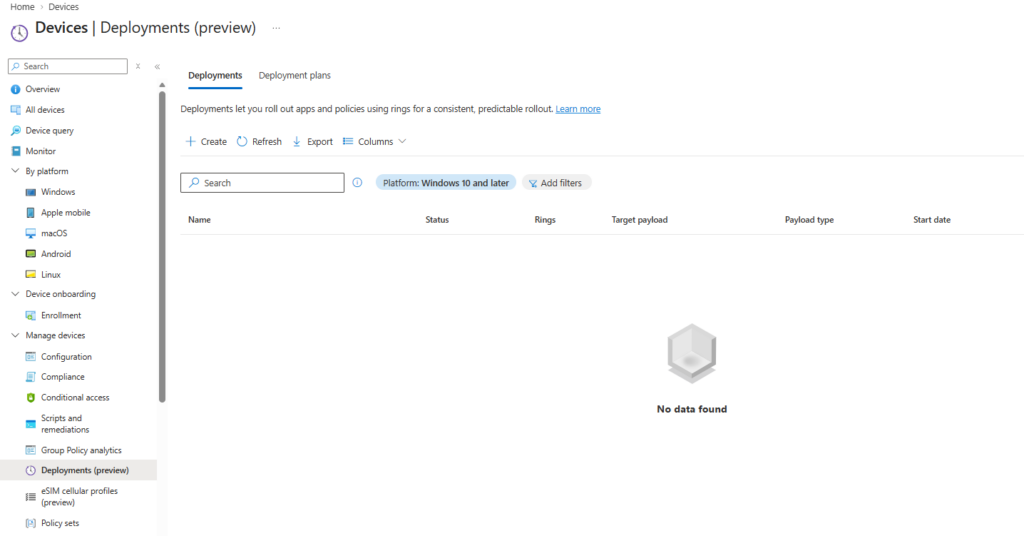
You’ll find Intune deployment plans under Devices > Manage devices > Deployments in the Microsoft Intune admin center.
Before you start
- Licensing: None of Microsoft’s Learn pages for deployments mention a licence beyond Intune itself, so you shouldn’t need anything more than Intune Plan 1 for Intune deployment plans. The exception is the payload: Enterprise App Catalog apps need Enterprise App Management, which is part of the Intune Suite.
- Preview status: it’s public preview. It works, but don’t build your whole change process around it until it goes GA.
- Permissions for plans: you need Create on the Deployment plan permission. The built-in Application Manager, Policy and Profile Manager, Endpoint Security Manager and School Administrator roles already have full rights to plans. Nice to see schools got a mention.
- Permissions for deployments: there’s no separate deployment permission. You need Read and Assign on whatever you’re deploying: Mobile apps for apps, Device configurations for policies.
- The payload must already exist: package and upload the Win32 app first. If you need a refresher, my Win32 packaging guide has you covered.
- Groups, one per ring at least: Entra security groups, or the All devices / All users virtual groups for the final ring.
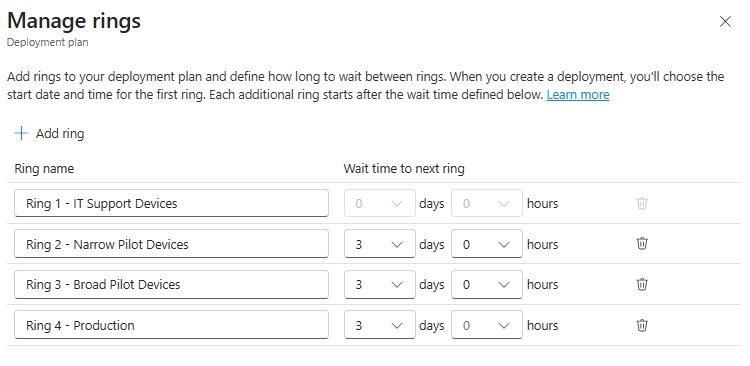
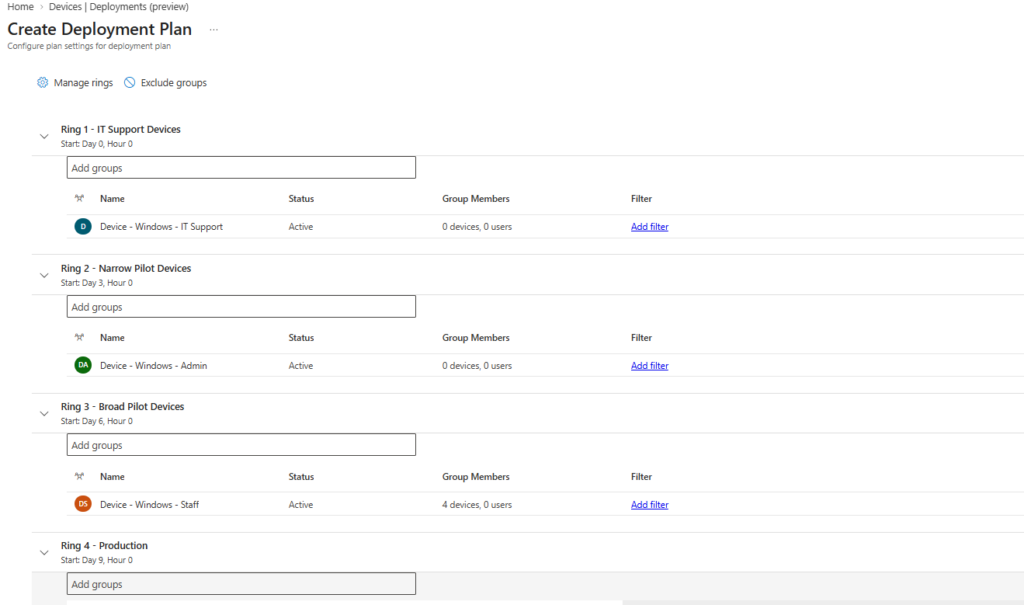
My lab plan has four rings, each with one device group:
| Ring and group | Starts | Who’s in it |
|---|---|---|
| Ring 1 – IT Support Devices | Day 0 | My own test devices. The ones I’m allowed to break |
| Ring 2 – Narrow Pilot Devices | Day 3 | A handful of friendly users who’ll actually tell you when something’s wrong |
| Ring 3 – Broad Pilot Devices | Day 6 | A bigger mix of users and device models, to catch what the friendly ones didn’t |
| Ring 4 – Production | Day 9 | Everyone else |
Tip: pick your pilot users carefully. You want people who report problems, not people who quietly reinstall Windows from a USB stick they found in a drawer.
Step 1: Create a deployment plan
Build the template first. With Intune deployment plans you only do this once, then reuse it for every app and policy after.
- In the Microsoft Intune admin center, go to Devices > Manage devices > Deployments. It’s labelled Deployments (preview) at the top of the page.
- Open Deployment plans and select Create plan.
- On Basics, give it a name you’ll recognise in six months. I went with Windows – Win32 App Deployment Plan. Add a description saying who’s in each ring, because future you won’t remember.
- On Deployment schedule, set Platform to Windows 10 and later so the Windows assignment filters are available. All platforms works too, but you then set filters per deployment instead of in the plan.
- Select Add rings.
- Name the first ring Ring 1 – IT Support Devices. There’s no wait time for the first ring because you set its start date when you create the deployment.
- Select Add ring, name it Ring 2 – Narrow Pilot Devices and set Wait time to next ring to 3 days.
- Select Add ring, name it Ring 3 – Broad Pilot Devices and set the wait time to 3 days.
- Select Add ring one last time, name it Ring 4 – Production and set the wait time to 3 days.
- Select Save.
- Add each ring’s matching group, from Ring 1 – IT Support Devices down to Ring 4 – Production. A ring can hold more than one group if you need it to, for example separate staff and student groups.
- Optionally, add Exclude groups. These apply to every ring, so it’s the right place for the kiosk devices or exam PCs you never want touched mid-term.
- Select Next, add scope tags if you use them, then Next again.
- On Review + create, check it over and select Save.
I used real groups for Production rather than the All devices virtual group. You can use All devices or All users for the last ring, but Intune always treats that as the final ring and won’t let you mix it with Entra groups in the same ring.
Tip: the minimum gap between rings in Intune deployment plans is one hour. Tempting for testing, but in real life give each ring at least a day or two. A ring that finishes before anyone has opened the app tells you nothing. I went with 3 days between each ring, which the plan shows as each ring’s start: Day 0, Day 3, Day 6 and Day 9.
Step 2: Create a deployment for a Win32 app
Now for the actual rollout. I’m using 7-Zip because it’s small, quick to install, and nobody files a complaint when it turns up.
Before you start: open the app’s Properties and check its Assignments. If any of your ring groups are already assigned there, Intune flags it as a collision and won’t let you create the deployment. Remove them from the app first. (Ask me how I found that out.)
- Go to Devices > Manage devices > Deployments and select Create.
- On Basics, name it after the app and version, for example Windows 7-Zip 26.03 – Rollout. Select Next.
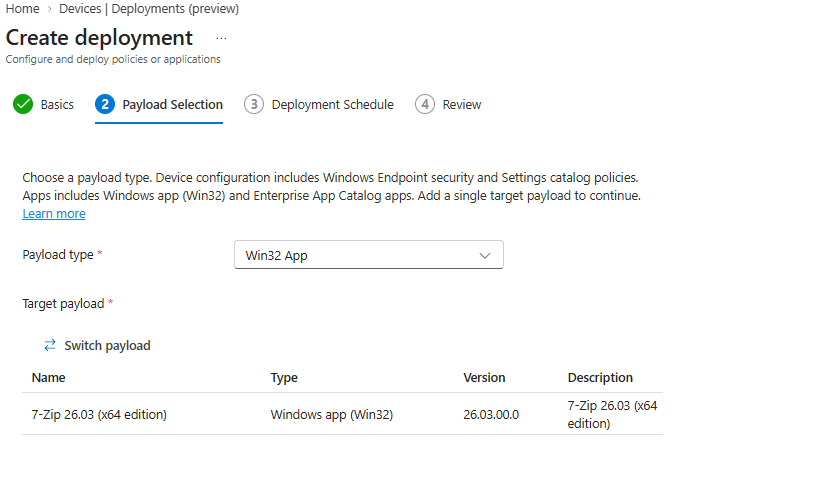
- On Payload selection, set Payload type to App.
- Select Add payload, pick your 7-Zip app, then Select payload, then Next.
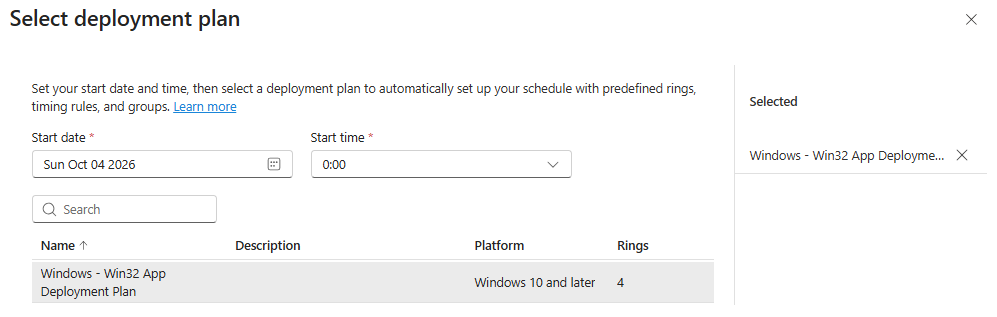
- On Deployment schedule, select Load deployment plans.
- Set the Start date and Start time for the first ring, Ring 1 – IT Support Devices. This is when the first group gets added.
- Select Windows – Win32 App Deployment Plan and then Select.
- The plan’s rings and groups load in. You can tweak groups and filters for this deployment only, without changing the plan.
- Select Next, check everything on Review + create, then select Create.
Good to know: Win32 deployments only support the Required intent. Available and Uninstall aren’t supported, so this is for pushing apps out, not for stocking up Company Portal.
If you’d rather not use a plan, select Add rings in step 5 instead and build one-off rings by hand. That’s handy for a one-time emergency fix you’ll never repeat. Famous last words.
Watching it roll out
Once the deployment is created, there’s nothing left to do but watch. Which, for once, is actually the job.
Check it’s working
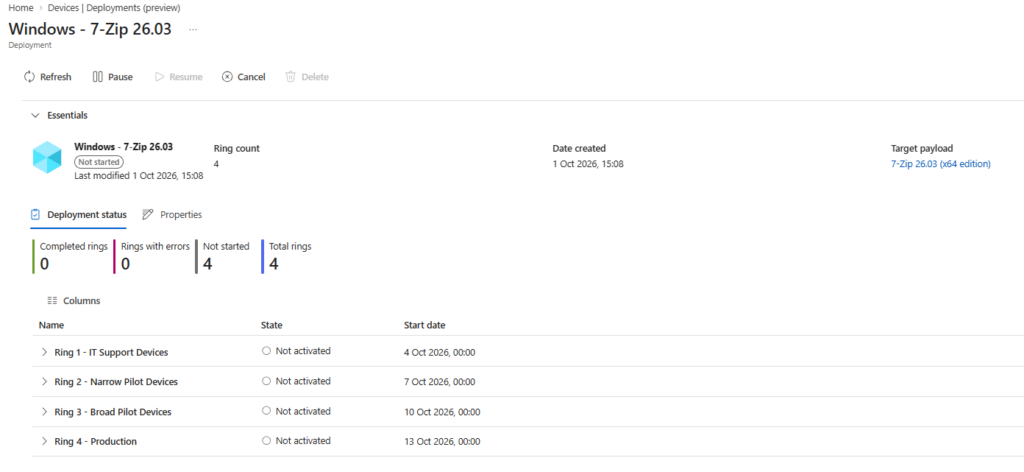
- Go to Devices > Manage devices > Deployments and select your deployment to check whether it’s running, paused or in an error state.
- Open the 7-Zip app and look at Properties > Assignments. When Ring 1 activates, Ring 1 – IT Support Devices appears as Required. Then Ring 2 – Narrow Pilot Devices joins on day 3, Ring 3 – Broad Pilot Devices on day 6 and Ring 4 – Production on day 9. That’s how you know the deployment is doing its job.
- Check install status the usual way, under the app’s Device install status.
- On a device in the IT Support group, open Company Portal or run a sync, then check that 7-Zip installed. If it didn’t, the Intune Management Extension log has the detail. The path is below.
C:\ProgramData\Microsoft\IntuneManagementExtension\Logs\AppWorkload.logWatching the assignments update on their own is oddly satisfying. It’s the first time Intune has remembered something on my behalf.
Pause, resume or cancel
This is the bit of Intune deployment plans that would have saved me a few Mondays. If Ring 1 throws up a problem, stop it before it reaches your pilot users.
- Pause stops the next ring from activating. Rings that already ran stay assigned.
- Resume carries on from where it stopped.
- Cancel stops all future rings for good.
All three are on the deployment itself under Devices > Manage devices > Deployments.
Cancelling doesn’t remove anything. Groups from rings that already activated stay on the app. If you want them gone, edit the app’s assignments yourself.
Intune deployment plans gotchas
Group collisions pause everything. Intune checks for collisions again every time a ring activates. If someone adds a ring group to the app directly mid-rollout, the deployment goes into an error state and pauses. Remove the group from the app’s assignments, then select Resume. The “someone” is usually you, a week later, having forgotten the deployment exists.
The app is still the boss. A deployment doesn’t lock the app. Direct changes to its assignments win over the deployment. Handy in an emergency, confusing if a colleague doesn’t know a deployment is running.
Updating the app mid-rollout is allowed. If you upload a fixed version before the next ring activates, the next ring gets the fixed version and earlier rings get it at their next check-in. That’s actually useful: fix the problem while it’s still in Ring 1, and your pilot users never see the broken version. One catch for Win32 apps: devices only reinstall if the detection rule no longer finds the app installed, so update the detection rule to look for the new version.
You can’t edit a deployment once it’s created. Name and description, yes. Rings, groups, schedule, scope tags and payload, no. Got the start date wrong? Cancel or delete it and create a new one.
One app, one active deployment. You can’t put the same app in two scheduled or active deployments at once.
Changing the plan doesn’t change running deployments. Intune deployment plans are templates. Edits only affect deployments you create afterwards.
Deleted groups break things. If a ring’s group gets deleted in Entra, the deployment errors when that ring activates, and Intune deployment plans show a warning banner when you open them. A soft-deleted group can be restored within 30 days and the deployment resumed (Microsoft 365 groups and cloud security groups only, so not groups synced from on-prem AD). A permanently deleted one means cancelling or deleting the deployment and starting again. Worth knowing before someone “tidies up” your groups.
Enterprise App Catalog apps: Update with supersedence works with deployments, but Automatically update doesn’t.
Should you use Intune deployment plans?
Yes. Use Intune deployment plans for any Win32 app or Windows policy that could ruin someone’s morning. It’s still preview and Windows-only, so keep your old process for everything else. But for the stuff that matters, building one plan and reusing it beats juggling groups and calendar reminders.
My advice: set up one standard plan today and use it for the next app update you’d normally have pushed to All devices on a Friday. Your Monday self will thank you.
Further reading
- Deployment plans and deployments overview (Microsoft Learn)
- Create a deployment plan (Microsoft Learn)
- Create and manage a deployment (Microsoft Learn)
- Permissions, scope tags and approvals for deployments (Microsoft Learn)

ICT Manager, 20 years in IT, and still occasionally clicking Sync and hoping. I write about Intune, Autopilot and Entra the way I’d explain it over a brew: what it does, how to set it up, and what’ll catch you out. Videos at @thedeploymentguy on YouTube.