If you’ve ever had an iPad sit there refusing to install an app because Apple says you’ve run out of licences, you’ll like this one. Free apps from Apple School Manager and Apple Business Manager now come through to Intune with unlimited VPP licences, so there’s nothing to buy in batches and nothing to count.
I’ve walked it through end to end in my own tenant: adding a free app on the Apple side, syncing the token, and seeing it land in Intune as unlimited. Here’s the whole thing, plus where it still won’t save you.
The short version
- Since the week of 19 October 2026, Intune supports unlimited VPP licences for Apple apps on iOS/iPadOS and macOS.
- On the Apple side, free apps now just get added to your library for chosen locations. Paid apps still need a licence quantity.
- Sync your location token in Intune and the app shows Unlimited for both total and available licences.
- Paid apps, token expiry and user licensing all work exactly as before.
In this post
What’s changed
In the week of 19 October 2026, Microsoft added support for unlimited VPP licences, so you can assign Apple volume purchase program (VPP) apps without a licence count from Apple Business Manager and Apple School Manager. It applies to iOS/iPadOS and macOS.
Until now, every VPP app worked the same way, free or not. You “bought” a number of licences, synced the location token to Intune, and Intune could only install the app up to that number. Run out, and the next device simply didn’t get the app, with Apple’s “No VPP licenses remaining” error in the install status to show for it.
Now free apps skip the counting altogether. Paid apps don’t.
Step 1: Add the app in Apple School Manager
The change starts on Apple’s side. Apple Business Manager works the same way.
- Sign in to Apple School Manager (or Apple Business Manager) with an account that can buy content.
- Select Apps Store in the sidebar.
- Search for the app and select it.
- For a free app, the Add to Library panel opens. Pick the Locations that should have it and confirm. There’s no licence count at all.

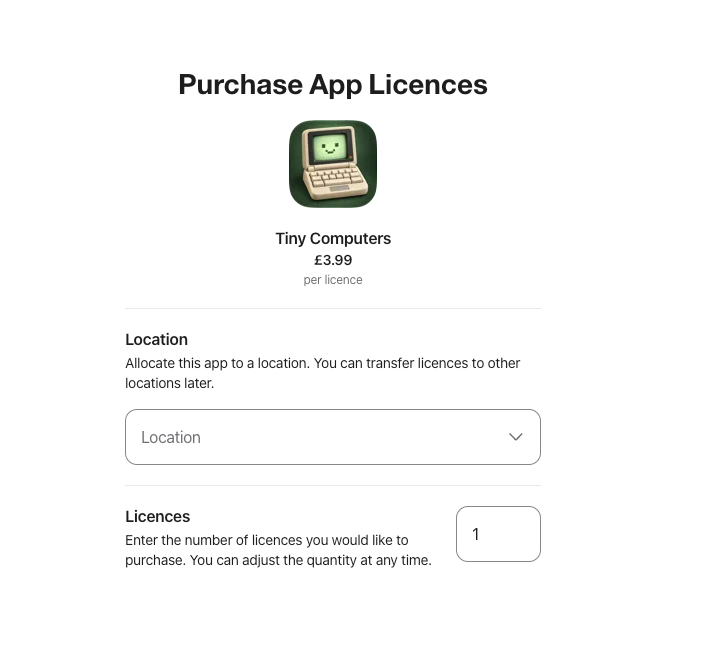
Compare that with a paid app. It still opens Purchase App Licences, where you pick one location and a number of licences, and you’re back to counting.
Step 2: Sync the location token in Intune
Intune only knows about the app once the token has synced. You can wait for the automatic sync, but I’d rather just do it.
- Go to Intune admin centre > Tenant administration > Connectors and tokens > Apple VPP tokens.
- Select your location token.
- Choose Sync.
- Wait for the Last sync time to update and check the Status still shows Active.

Tip: while you’re on this page, check the Expiration date. Location tokens last a year, and an expired token breaks app assignments whether the licences are unlimited or not.
Step 3: Check the app has unlimited VPP licences
Once the sync has finished, the app appears in Intune with the rest of your VPP apps.
- Go to Apps > iOS/iPadOS (or Apps > macOS for a Mac app).
- Search for the app and select it.
- On the Overview page, check Total licenses and Available licenses under Essentials. Both should say Unlimited.

Step 4: Assign the app
Assigning works exactly as it did before. The only difference is you’ll never run out.
- On the app, go to Properties and select Edit next to Assignments.
- Add a small test group under Required first. A dynamic group of test devices works well; my guide to dynamic groups in Entra covers how to build one.
- Set License type to Device licensing.
- Save, then check the app installs on a test device without any Apple Account prompt.
- Once you’re happy, widen the assignment.
Device licensing is still the one I’d use for shared and zero-touch devices. The app installs without the user doing anything. If it doesn’t turn up on a device, a sync is the first thing to try, and Intune device action status tells you whether that sync actually happened.
When it won’t help
Don’t throw away your licence process yet.
- Paid apps still count. They still go through Purchase App Licences with a quantity, and you can still run out.
- Your token still expires. Location tokens are valid for one year, unlimited licences or not.
- User licensing still needs Apple Accounts. If you assign with user licensing, the user still needs to be signed in with an Apple Account.
Unlimited VPP licences gotchas
Revoking still matters for paid apps. If you deploy both free and paid apps, keep reclaiming licences for the paid ones. The route is unchanged: Apps > All apps > select the app > App licenses > Revoke licenses.
VPP apps update automatically. That’s true for both Required and Available assignments, so a big rollout of a free app also means every device updates when the developer ships a new version. Plan for that if the app matters to lessons or a business process.
Intune only reflects what Apple gives you. If an app still shows a number rather than Unlimited, check it in Apple School Manager or Apple Business Manager. A paid app never shows as unlimited.
Should you change anything?
If you manage a lot of Apple devices, yes: with unlimited VPP licences, free apps are now the easy bit. Add them to your library, sync, and assign them to everything without a second thought. Keep your licence process for paid apps. This removes a chore for free apps, it doesn’t change how VPP works for paid ones.
Further reading
- What’s new in Microsoft Intune (Microsoft Learn)
- Manage Apple volume-purchased apps with Intune (Microsoft Learn)

ICT Manager, 20 years in IT, and still occasionally clicking Sync and hoping. I write about Intune, Autopilot and Entra the way I’d explain it over a brew: what it does, how to set it up, and what’ll catch you out. Videos at @thedeploymentguy on YouTube.